Sunday, 29 August 2021

Files in Dynamics 365 CRM Part 2

 The last piece I worked on was to create the files in SharePoint and link them to the Document Location.

if you did not read part 1, kindly check it out here.

To create the file on SharePoint, I need two important requirements, the filename, and filecontent.

For Filename: You can access the file attribute from the FileAttachment entity. 

The output used in the filter array is the GUID of the file uploaded.

For FileContent:


SharePoint file creation


Because we have already linked the SharePoint to the right Document Location, the file created in SharePoint is visible in Document Location for that record


Files in Dynamics 365 Part 1

 I recently worked on a project that involved handling files with SharePoint and Dynamics 365 CRM. While all the scenarios are connected, it took me a few days to get the output I desired, so I decided to do a little safe-keeping by blogging it.

The scenarios

  1. Stop default SharePoint Document Location creation in Dynamics 365 CRM and create a custom document location
  2. Upload Files into Dynamics 365 CRM using the File Data Type
  3. File uploaded in No 2. should be created in the SharePoint Folder for the associated record and also linked to the associated Document Location.
Let's dig in

Stop default SharePoint Document Location creation in Dynamics 365 CRM and create a custom document location

This was achieved in two parts (using a Real-time workflow and Power Automate )

First Part


Real-Time workflow was used to disable the default document location that is created when the "File" tab of the associated record is clicked.

The workflow is created on "Document Location" entity. I simply added a condition that states:
and added a step to cancel the creation

Note: The flow cancels default document location creation for the entities in the condition.

Second Part:


I created a 5 step Power Automate and the final output is this:

Let's break it down (The custom document location is created for opportunity)
  • Step 1:  

  • Step 2: I filtered the rows to return using the Odata query. 
    name eq 'Documents on Default Site 1' and _regardingobjectid_value eq null and relativeurl eq 'opportunity'
    Note: The "relativeurl" changes depending on the entity and a "Documents on Default Site 1" has been created for the opportunity as a Document Location in Dynamics CRM


  • Step 3: 

  • Step 4:  I used an "OData.Id" from Step 3. 
    outputs('DocLoc')?['body/value']?[0]?['@odata.id']
  • Step 5: The "ODataId" is from Step 4
  • Final Result:


Upload Files into Dynamics 365 CRM using the File Data Type

This is quite straightforward. A file datatype control was added to the form and I was able to upload files. Questions around where the files are stored may arise which is not clear now, but I am still researching this.


Sunday, 5 July 2020

Consume Microsoft Dynamics NAV/BC ODATA using .NET C#

I meddled into consuming NAV Odata using C# this evening.

The walkthrough followed as documented by Microsoft: Walkthrough: Creating and Interacting with a Page Web Service (OData)

I had made some changes as my request is quite different and below is what I did:

Tools Used

  1. VS 2017
  2. OData Connected Service.
    1. Download from here: OData Connected Service OR
    2. Download from VS => Tools => Extension and Updates => Search for OData Connected Service.
Steps
  • Expose the Odata URL/endpoint on NAV/BC
  • Get Authorization Code: I used Postman to get this.

  • Create Console Application on VS2017
  • Add Connected Service to the project
  • Enter Service Name, Address, Authorization header


  • Use the necessary references and namespace of the service

  • See code sample

using System;using System.Collections.Generic;
using System.Linq;
using System.Net;
using System.Text;
using System.Threading.Tasks;
using NAV;
namespace NAVConsole
{
class Program
{
static void Main(string[] args)
{
String username = "Test";
String password = "your password";
NAV.NAV nav = new NAV.NAV(new Uri("http://<servercomputer>:<odataport>/<serverinstance>/ODataV4/Company('PILOT')"));
nav.Credentials = new NetworkCredential(username, password);
PrintSalaryAdvances(nav);
Console.ReadLine();
}
private static void PrintSalaryAdvances(NAV.NAV nav)
{
var salAdv = from s in nav.StockAutomationCard
select s;
foreach (var item in salAdv.ToList())
{
Console.WriteLine($"Requester: {item.User_ID}, No: {item.No}");
}
}
}
}


  • Result


Saturday, 4 July 2020

Start workflow from button in Microsoft Dynamics CE.

Executing workflow from the ribbon button in the days of the Classic Interface of Dynamics CRM/CE requires a mix of the JavaScript and workflow.

But with the advent of Smart Buttons by Scott Durrow, things are a lot easier and compatible with Dynamic CE unified interface.

Here is the link that explains the features and usage:  Smart Buttons for Unified Interface
Here is the link to download and install the SmartButton solution: SmartButtons Solution

Enjoy ✌

Wednesday, 1 July 2020

Show/Hide button based on security role using Entity Privilege on Microsoft Dynamics CE

I came across this request sometimes ago but I implemented it using code: JavaScript. Nevertheless, my client still experienced issues because the button is not visible at certain times.

So I had to search for another solution: using Entity Privilege. This is simple and it works well.

The steps are below. These steps are grouped into two

  1. On the Ribbon WorkBench Tool (RWB Tool)
  2. On Dynamics 365/CRM: Entity and Security Customization
My scenario is to show Procure button on quote entity when quote status is Won for a user with Procurement Officer or Procurement Admin Role

On Dynamics: Entity and Solution Creation

  • Create an entity. e.g. button access
  • Add the new entity (button access) and other entities you want to work on in the RB Tool to a solution

On RWB Tool

  • Open Ribbon Work Bench tool (RB Tool) and select your solution
  • Right-click the button and choose "customize command"

  • Display Rule: Add an EntityPrivilegeRule, 
    • Set Default to True
    • EntityName to the new entity created (button access)
    • PrivilegeDepth to Basic
    • PrivilegeType to Create or anyone you wish

  • Add Display Rule to Command

  • Publish your ribbon customization.

On Dynamics: Security 

  • Open Security role and select anyone you want to edit
  • Select Custom entities and locate the new entity (button access)
  • Give User/Basic Privilege as shown in the image below
  • Procure Button on Quote entity.


Entity mapping for fields in Microsoft Dynamics CE

Customizing entities is a norm when you extend in Dynamics CRM. I came across entity mapping twice so I decided to blog this as a reference to me and any other finding solution.

It quite easy to map attributes in entities with visible relationships in Dynamics CRM but for hidden relationships, you have to go through some steps to map these custom fields/attributes

Prerequisites before mapping:

Ensure there is an existing relationship between the entities and get the Mapping ID: You can confirm through

Get EntityMap Id

  • Get All Entity Maps: This displays a list of all mapping existing in your environment. 
[Organization URI]/api/data/v9.0/entitymaps?$select=sourceentityname,
targetentityname&$orderby=sourceentityname
Example
{"@odata.etag":"W/\"1145417\"","sourceentityname":"account", 
"targetentityname":"customeropportunityrole", 
"entitymapid":"57efb32f-b9ec-e911-a812-000d3a25c8cc"}, 

OR

  • Get a Specific Entity Map: Between SalesOrderDetail and InvoiceDetail
[Organization URI]/XRMServices/2011/OrganizationData.svc/EntityMapSet?$
select=EntityMapId&$filter=SourceEntityName eq "salesorderdetail" and
TargetEntityName eq "invoicedetail"
The EntityMapId will be the same

Create Mapping

Use the entitymapid
[Organization URI]/Tools/SystemCustomization/Relationships/Mappings/
mappingList.aspx?mappingId=57efb32f-b9ec-e911-a812-000d3a25c8cc

Thursday, 6 December 2018

Build Numbers for Dynamics CRM

I was tasked to get all the build numbers for every version of Microsoft Dynamics CRM version released which made me curious as to why I had not documented it.

My research brought me to this page. A comprehensive list of all build numbers of Microsoft Dynamics CRM.

Click Build Numbers for Microsoft Dynamics CRM to get it.


Friday, 2 November 2018

Plugin Registration Tool Crashes

My Plugin registration was working perfectly not until it decided not to when I needed it most.

This happened to Plugin Reg. Tool V9. Basically, I just cleared the files in the folder

C:\<your username>\AppData\Roaming\Microsoft\PluginRegistration

Below is my source of the solution.

Quick Fix to Plugin Registration Tool crashing by Yawer.

Monday, 11 June 2018

Quick Fix: Visual Studio 2017 displaying NAV Report Layout as XML

My colleague tried to open a report from NAV 2018 on VS2017 and he had issues because the report only showed the XML view.
He was not expecting this and could not make sense out of it.
We searched for answers and saw

A great article from Kushal Pillay
Quick fix: VS 2017 displaying NAV Report Layout as XML

and also Shashangka Shekhar
Enable RDLC Reporting in Visual Studio 2017

The steps were followed and the issue was resolved


Monday, 8 January 2018

Authentication Issue with Web App for Dynamics 356 v9

I was unable to connect to Dynamics 356 Customer Engagement through a web application.
There were different errors I got based on the method used to connect to CRM

For Xrm.Tooling.Connector
Error message: OrganizationServiceProxy is null
LastCrmError: "Unable to Login to CRM OrganizationServiceProxy is null"

For Web service OrganizationService
Error: Metadata contains a reference that cannot be resolved: ‘https://***.api.crm4.dynamics.com/XRMServices/2011/Organization.svc?wsdl&sdkversion=9

During my search for a resolve, which took me days, I stumbled upon this blog
Abhinav Ranjan

Following this link by Microsoft New features of Dynamics 365 Customer Engagement. It explained the possible ways to resolve it.

Adding this piece of code before authentication resolves the issue

ServicePointManager.SecurityProtocol = SecurityProtocolType.Tls12


Tuesday, 7 November 2017

ADAL .NET v3: Authenticate without popping up a login form

After successfully working with OrganizationService endpoint for CRM, performing the CRUD operations I decided to move to WEB API because it is the future.

During my learning process, I had issues

  1.  I wanted the silent login: a situation where I provide the user credentials directly in the code. The sample code on MSDN didn't provide that scenario. It always popped up the login form.
ADAL v2 had a UserCredential Class that takes 0 or 2 arguments (username, password), which allows us to pass the credentials without a pop-up login form.

ADAL v3 UserCredential Class now takes 0 or 1 argument(username) which makes the scenario a bit different. In case you are using ADAL v3, the UserPasswordCredential Class should be used: It takes the username and password.

ADAL v2

 var authContext = new AuthenticationContext(Authority);
 var userCredential = new UserCredential(username, password);
 string accesstoken = authContext.AcquireToken(ResourceUrl, ClientId, userCredential);
Instead use
ADAL v3
  var authContext = new AuthenticationContext(Authority);
 var userCredential = new UserPasswordCredential(username, password);
 string accesstoken = authContext.AcquireTokenAsync(ResourceUrl, ClientId, userCredential).Result;

Sunday, 29 October 2017

Retrieve values from GridView on SelectedIndex_changed

This is very different from rowindex_changed

For C#

Find the control, probably a label, of the data you want to retrieve.

    //Accessing BoundField Column
    string name = GridView1.SelectedRow.Cells[0].Text;
 
    //Accessing TemplateField Column controls
    string country =       (GridView1.SelectedRow.FindControl("lblCountry") as Label).Text;
 
    lblValues.Text = "<b>Name:</b> " + name + " <b>Country:</b> " + country;

An error occurred during local report processing in RDLC

I had this issue during the week and I have decided to put this as an article in my personal knowledge bank.

I tried to convert RDLC to PDF: it worked on my local machine but on getting to Azure I got this error: "An error occurred during local report processing in RDLC".

I didn’t  achieve this on Azure but I was able to resolve the issue using these instructions
  1. Add Microsoft Report Viewer dll to your solution( ReportViewer.common, ReportViewer.webform and ReportViewer.project object model)
  2. The dll must be of the same version.
  3. Set the “copy to local” property to true for all DLLs. (this is done so that the DLLs will be published with the solution).
  4. Install Microsoft Report Viewer Runtime same or higher version.
  5. Set the “BuildAction” property to content and make sure the name of the Report is the same as the name of the Report you want to use
  6. Set the “Copy to Output Director” property to “copy always” or “copy if newer”

Build and publish your project, the Report appears in the bin folder. I used another Host for the project and all was fine.


Wednesday, 22 February 2017

CRM 2016 and SQL Issues

I woke this morning feeling good and it became awesome when I was told to install CRM 2016 on my company's server. As usual, I pulled my favorite web-link from my browser as a guide. All went well until little issues popped and it dawned on me I would spend much time than expected.


 The list of issues in a jiffy.

 I faced SQL related issues

Issue 1: I mistakenly "deleted my administrator's account in SQL Server 2012"
I thought of re-installing SQL, the process of copying my MDF and log files was going to be tedious for me. But I didn't do all that. I found this:
How I Resolved: SQL server itself provides a disaster recovery option. Members of Windows Administrator group now have access to SQL server when SQL server is started in a single-user mode known as maintenance mode.

I had to start SQL server in a single user mode through the SQL Server Configuration Manager tool

  1. Open SQL Server Configuration Manager tool, 
  2. Stop the SQL Server service, Right-click to select properties, 
  3. On the startup parameters tab add "-m" without the quotes click on add, apply and restart the SQL service Service.

With that, I was able to login to SSMS to create an Admin account in the security

Issue 2: Upon installation of CRM 2016, "My reporting service wasn't connecting to the database", it took a while to figure out I had to open Reporting Services Configuration Manager to adjust my servername and instance.

The third on the list "the instance name must be the same as computer name"
I knew I changed my computer name after I installed SQL Server 2012, but didn't expect an error during installation of CRM.
Name of Instance
before: WIN-IT8745;  after :SOFTCUB

How I Resolved it: I ran this code
SELECT @SERVERNAME AS [Server Name] to know my server name.

sp_dropserver 'WIN-IT8745'
sp_addserver 'SOFTCUB', local

Then I restarted my SQL Server Service and that resolved the issue.

Issue 4: I tried installing CRM again and I got this error " The Full-text component is not installed on SQL Server, Word Breaker Not Installed".
How I Resolved it:
This is a feature missing during my initial SQL Server installation.

  1. Run SQL server setup
  2. Choose the feature "Full-text component" and that resolved it.
  3.  Don't forget to restart your SQL Service so to remove any warning like "Word breaker is not installed"


Issue 5: The  SQL Server Reporting service is a local account and it is not supported."
Reason: The SQL server reporting service was installed using default settings,  and SrsDataConnector won't install while SSRS is running under default settings account.
How I Resolved it:

  1. Open Reporting Services Config Manager
  2. Update the Service Account to something like "local system"
  3. Click apply and complete the wizard by specifying the Location, password for the Encryption Key.


Tuesday, 24 January 2017

Deploy 365 for Operations through LCS

Overview of the Basic Steps 
To setup AX7 or Microsoft Dynamics 365 for Operations. 
Prerequisites
  • Azure Subscription 
    • Two virtual machines of  D13, don't worry about setting this VM, it will be done automatically during setup. 
  • Microsoft Office Account
  • Browser mode must be InPrivate Browsing mode for Microsoft Edge browser or Incognito window for chrome browser
  • If you want to use your normal browser mode, delete its cookies and restart your browser.
With all these set, you can 

Start a new project in LCS
To use Lifecycle service to manage your environment you must create a project
  1. Goto https://lcs.dynamics.com.logon/index
  2. click sign-in
  3. Login with your Microsoft office 365 account
  4. Click + icon to create a new project
      5. Select project type

       6. Enter project information and click create

Creating a project was easy. Now let's Deploy environment

Before you deploy your environment you must setup VSTS,(Visual Studio Team Services).
VSTS Setup
  • Login to https://www.visualstudio.com
  • Click "Free Visual Studio" in top right corner
  • Under the Visual Studio Team Services, click "Free Account"
  • The user who wants to be VSTS owner should sign in with his/her work account.
  • Enter a customer/organization specific URL
  • Choose Team Foundation Version Control (TFVC) and click continue.
  • The VSTS account is created https://<org/customer>.visualstudio.com. This comes with a default project "My FirstProject".

In order to connect VSTS to LCS you will create another project.
  • Click on "Team Services" in the top left corner to exit the project
  • Click New under "Project and Teams"
  • Enter Project Name, Process Template must be Agile, Version control must be TFVC
  • Click "Create Project"

Finally for this section you need a Personal Access Token
  • Click on your name in the top right corner
  • Select security
  • Click on  Personal Access Token
  • Click Add
  • Enter a description
  • Expiration date: choose the maximum
  • Under Authorized Scope: Select All scopes
  • Create token.

This generates an alpha-numeric token which should be copied and saved because it is important for the connection to LCS.

Setup LCS integration with VSTS
  • Goto LCS: Setup VSTS is either found on the LCS homepage or in Project Settings


  • Enter VSTS Url
  • Paste Personal Access Token


  • Click Continue
  • Select the new  VSTS Project you created.


  • Click Save
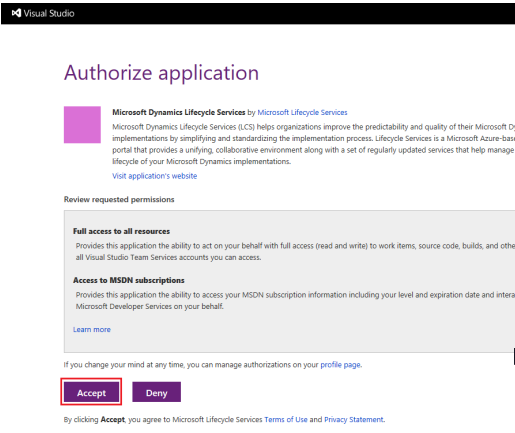
  • Click Authorize


  • Click Yes


  • Click Accept

  • Setup is Complete


With VSTS Setup let's move on to the next phase. The Final Saga

Integrate LCS with Azure
NB: The steps in this section require the old and new Azure portal.
  • Goto Project Settings.
  • Click on Azure Connector on the left navigation pane.
  • Follow the steps here to Integrate LCS with Azure successfully.
After a successful integration, you should have something like this 


Deploy Environment
Environment should be deployed to an existing Azure subscription.
You can create an environment in two ways:
  • Deploy to Microsoft cloud (Azure)
  • Download the local VHD and operate it on-premise.

My thought on that if you ask, just go with the cloud. it takes more than enough resources to operate AX7 on-premise and also since 365 for operations is a cloud platform why drag yourself backwards.

  • Click on cloud hosted environment
  • In the Environment Click the +Add icon
  • Select your environment


  • Select the topology to deploy
  • Deploy your environment: Environment must not have space or number


  • Click the environment to view details about the deployment status.
  • The first deployment will take a few hours, but each subsequent deployment will be much faster.
  • When the deployment status changes to Deployed, click Login to connect to the client, or click the VM name to the development machine by using Remote Desktop.
  • After the deployment is completed, you can find the base URL, and also the information that you require to connect to the environment via Remote Desktop

Monday, 23 January 2017

Microsoft Dynamics 365 for Operations Basic Setup

System Administration in AX7

Objectives 
  • Basic Data Setup and Configuration
  • Configure User and Security
  • Data Import and Export in AX

Basic Data Setup

Global Address Book is a central repository that contains information about each party that an organization has contact with.
Number Series: is a number sequence that defines the number available for use and the formatting of these numbers
  • Transactional Numbering: gives each transaction a unique number e.g. General Ledger, Purchase Order number, Invoice numbering.
  • Master Data Numbering: gives each master data a unique number e.g customer, vendor, workers.
  • System-wide Numbering: Basic numbering for basic processes and it is not module specific e.g. Activity, Case Number.

Legal Entity: is an organization that is identified through a registration with the legal authority
A company in AX is used to collect transactions related to one legal entity.
Multi-company Setup:
  • Currencies & Exchange rate: it facilitates upkeep of daily exchange rate
  • Fiscal Calendar: represents financial reporting periods.
  • Financial Dimensions: analyze financial data in more detail
  • Products determine the product setup of the company.

License Configuration and Parameters
License keys are used to control general access t functionality in the system.
Parameter forms each module control the specific function of each feature.
Configuration can be used to enable or disable smaller pieces functionality of the organization 

User
Users are connected to the Active Directory in order to work in AX.
Security Role gives access to functionality based on an employee's role in the organization.
A worker is linked to the user record through a user relationship record. This links users to Employees and allows functionality like commission and access to Enterprise Portal (EP).
User Profile: This linked to the user record to a Role Center which will be displayed as the homepage when logging into the rich client r Enterprise Portal

NOTE: Once a record is created in the worker section, it is automatically created in the Global Address Book.


Data Import & Export Tools
  • Data Import & Export Framework
  • Data Packages: these are XML files and transactional data uploaded into LCS and the data is deployed into AX
  • Excel Data connector.

Thursday, 15 December 2016

Microsoft dynamics NAV Report

In simple term, Report is used to display certain information as specified in your filter from a database. Two important tasks are required to create a report
  • Designing the data model or dataset by using Report Dataset Designer
  • Design the Visual Layout: Also divided into 2
    • RDLC - Client Report Definition report Layout: created using Visual Studio Report Designer or SQL Server Report Builder.
    • Word Layout: created using Microsoft.
NB: I will only go into RDLC only

Report Dataset determines the data that is extracted or calculated from the Microsoft Dynamics NAV database tables that can be used in a report. Report Dataset is built from data items --which are tables and columns -- which can be any of these: field, variable, expression or text constant.

How to Create a Report Dataset
  • Open the Object Designer and select Report from the left navigation pane.
  • Click New to open a new Report
  • In the first blank line select the data item, the datasource and a CLS complaint name as the name.
  • In the second line select the column(s) you want for your report. 
    • Click View >> Select Field Menu to choose the fields you want. You can select multiple by holding down CTRL or SHFT key.
  • You can link Tables by indenting data items (table) under another data items (table)
    • Make sure you verify the DataItemLinkReference property is set to the Parent data item.
    • Also use the DataItemLink to connect the Tables - just like in SQL connecting the primary key to the foreign key (by setting the field and reference field)

Design the Visual Layout

The layout is designed in Microsoft Visual Studio Report Designer
It starts by opening Visual Studio Report Designer from the Report Object Designer in NAV Development environment.

  • Report >> Design
  • Click View >> Layout: this opens visual studio.
  • On VS, Click View >> Report Data: pin this to the left navigation pane of the IDE

From the Toolbox, drag a Table to the Designer, Right-Click the header to add Column (as many as required).
It is good practice not to hard-code your table therefore follow these steps to name your header and textbox values

  • Right-Click the header >> select Expression 
  • For the header. Select the parameter and double click the value. Repeat this step for all your headers


  • For the textbox: Select the Fields (second row) and double-click the value. Repeat this step for all your textboxes.


In the Properties window, select the Table properties and set the property DataSetName to DataSet_Result -which is automatically done by visual studio.

The Request Page

Request pages enable end users to specify options and filters for a report. It is created by default when a new report created. In addition, you can create custom options in the Request Page.You design these options  y using the Request Options Page Designer which is accessed from the Report Designer.

There are so any properties and functionalities in Report that I can't cover half of it in this blog, so I'll advice you to visit MSDN for more information

BUT
The headache here is that any visual design has to be done in Visual Studio and  you have to close VS before you can run the report on the RoleTailoredClient. This means any little customization requires you to open VS, make customization and close VS again before running report.